The dashboard is the first page you see after logging in. It gives you a quick summary of your sync activity, highlights any issues, and shows you what still needs to be configured.
Getting Started Checklist
When you first create your account, a Getting Started checklist is displayed at the top of the dashboard. Each item in the list is a setup step:
- Connect Autotask PSA , Links to the Autotask setup page. Marked as complete once a connection is active.
- Connect Xero Accounting , Links to the Xero connection page. Marked as complete once Xero is authorised.
Completed items are shown with a strikethrough. The checklist is hidden once all steps are done.
Statistics Cards
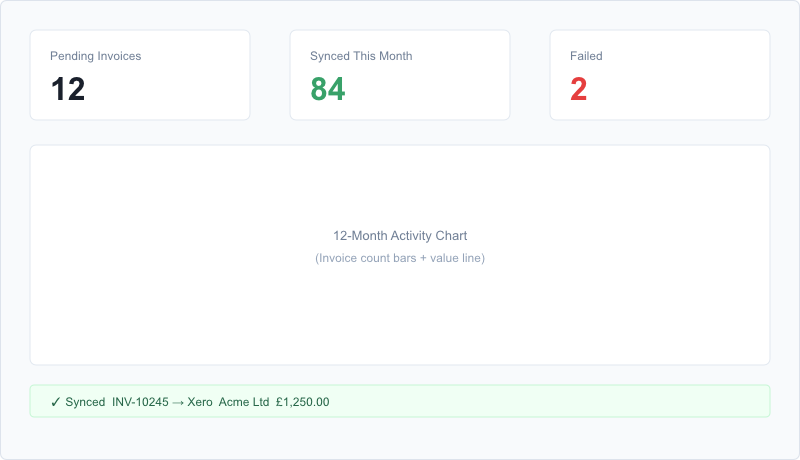
Three summary cards show the current state of your invoices:
- Pending Invoices , The number of invoices that have been downloaded from Autotask but have not yet been synced to Xero. Click the card to go directly to the Sync page.
- Synced This Month , The total number of invoices successfully synced to Xero in the current calendar month.
- Failed , The number of invoices that failed to sync. Click the card to view them on the Sync page so you can investigate and retry.
Activity Chart
The chart at the centre of the dashboard shows your sync activity over the past 12 months, displayed as two overlaid series:
- Invoice count (bars); The number of invoices synced each month.
- Total value (line); The combined £ value of invoices synced each month.
Hover over a bar or point on the chart to see the exact count and value for that month.
Recent Activity Log
Below the chart is a table of the most recent sync actions. Each row shows:
- A status icon (success, warning, error, or info)
- The date and time of the action
- A description of what happened
- The Autotask invoice number (with a link to view it in Autotask)
- The Xero invoice number (with a link to view it in Xero), if applicable
Click a row with an error status to expand it and see the full error message. This is useful for quickly diagnosing why an invoice failed to sync.
For the full log, go to Sync > View All Logs. See Viewing the Sync Log for more details.
Navigation
The main navigation menu is on the left side of the screen. It contains links to all the main sections of upSync:
- Dashboard , Returns to this page.
- Sync Invoices , Download and sync invoices.
- Connections , Manage your Autotask and Xero connections.
- Settings / Mappings , Configure billing code and tax code mappings.
- Subscription , View and manage your plan and billing.
- Profile , Update your name, email, and company details.