
Tax code mappings tell upSync which Xero tax type to apply for each Autotask tax code. This ensures that the correct VAT or sales tax rate is applied to each invoice line item when it is created in Xero.
Prerequisites
Before you can set up tax code mappings, you must:
- Have Autotask connected and have clicked Sync Reference Data on the Autotask settings page. This downloads your tax codes from Autotask.
- Have Xero connected with reference data synced. This downloads your tax types from Xero.
Setting Up Mappings
- Go to Settings > Tax Code Mappings.
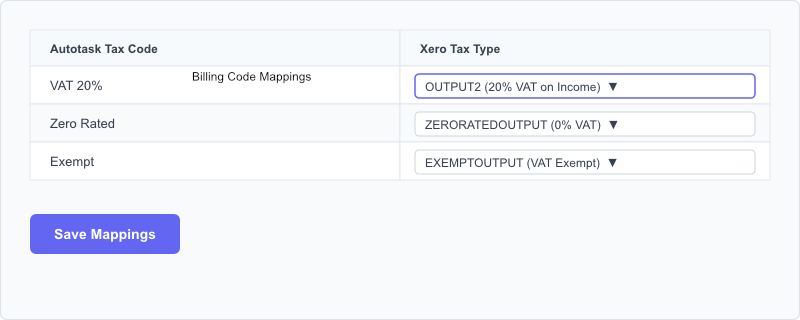
- You will see a table with your Autotask tax codes listed in the left column and a dropdown for each in the right column. Select the corresponding Xero tax type for each Autotask tax code.
- Common mappings for UK businesses:
- Autotask VAT 20% → Xero OUTPUT2 (20% VAT on Income)
- Autotask Zero Rated → Xero ZERORATEDOUTPUT (0% VAT)
- Autotask Exempt → Xero EXEMPTOUTPUT (VAT Exempt)
- Click Save Mappings.
Note: If a tax code is not mapped, the invoice line item will sync without a tax type applied. In Xero, this may result in the line item being posted with no tax, which could affect your VAT return. We strongly recommend mapping all tax codes before syncing invoices.
Xero Tax Types
The dropdown in the right column lists all tax types configured in your Xero organisation. Tax type names vary depending on your country and Xero configuration. If a tax type is missing, go to Connections > Xero and click Refresh Data, or add the tax type in Xero and then refresh.
Updating Mappings
If you add new tax codes to Autotask, click Sync Reference Data on the Autotask settings page, then return to Tax Code Mappings to map the new codes.