
upSync connects to Xero using OAuth2, a secure authorisation method that does not require you to share your Xero password. You simply click a button, log in to Xero, and grant upSync permission to access your organisation.
Before You Begin
You will need:
- A Xero account with access to the organisation you want to connect.
- Sufficient Xero permissions to authorise third-party apps (usually a Standard or Adviser role).
Step-by-Step Connection
- In upSync, go to Connections > Xero.
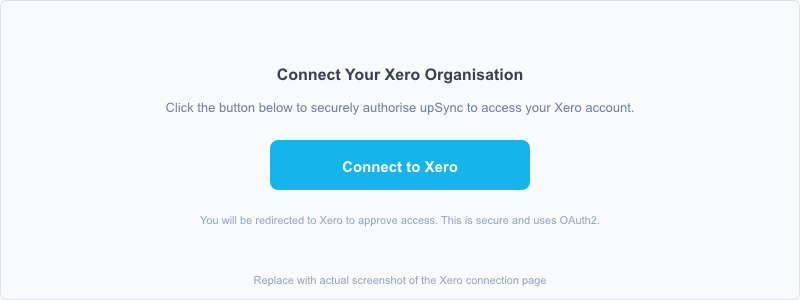
- Click the Connect Xero button.
- You will be redirected to the Xero website. Log in with your Xero credentials if prompted.
- Xero will show you the permissions upSync is requesting. Click Allow access to approve.
- If your account has access to more than one Xero organisation, you will be asked to select which organisation to connect.
- You will be redirected back to upSync automatically. upSync will retrieve your organisation name, default currency, and reference data (accounts and tax types).
- A green Connected to [Organisation Name] badge confirms the connection was successful.
Note: upSync uses a secure token to access Xero. This token is encrypted and stored securely. Xero tokens expire periodically and upSync refreshes them automatically in the background. If the token cannot be refreshed, you will see a warning and will need to reconnect.
After Connecting
Once connected, upSync will automatically download your Xero reference data:
- Account codes , Used in billing code mappings and as the default account code for unmapped items.
- Tax types , Used in tax code mappings.
You will then be taken to the Xero Settings page where you can configure how invoices are created in Xero.
Refreshing Reference Data
If you add new account codes or tax types to Xero after your initial connection, click Refresh Data on the Xero settings page to pull in the latest reference data. This is required before the new codes will appear in your mapping dropdowns.
Disconnecting Xero
To disconnect Xero, click the Disconnect button on the Xero settings page and confirm. Disconnecting does not delete your existing invoice records or sync history. Your Xero invoices that were already created will remain in Xero. You can reconnect at any time.
Note: Disconnecting from upSync does not revoke access in Xero itself. To fully revoke access, go to Xero > Settings > Connected Apps and remove upSync from there as well.