The Xero Settings page controls how upSync creates invoices in your Xero organisation. Access it by going to Connections > Xero after connecting your Xero account.
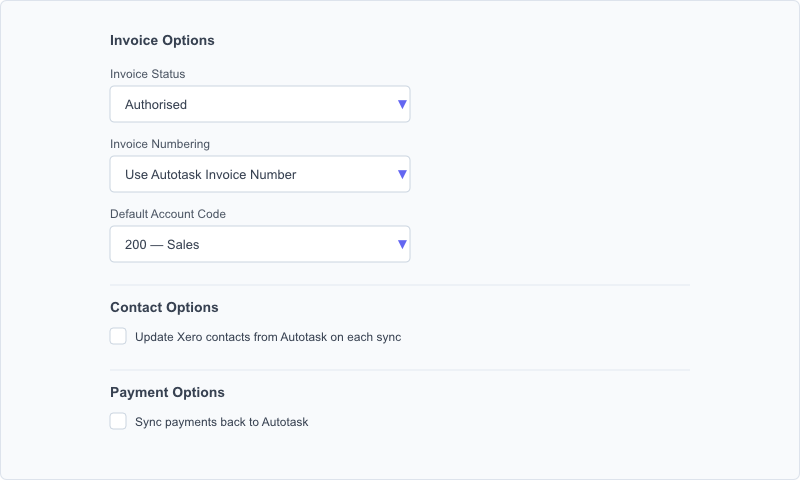
Invoice Options
Invoice Status
Controls the status assigned to invoices when they are created in Xero. Choose the option that matches your workflow:
- Draft , Invoices are created as drafts. They are visible in Xero but will not be sent to customers or included in reports until you manually approve them. Use this option if you want to review invoices in Xero before finalising.
- Awaiting Approval , Invoices are submitted for approval. A Xero user with the appropriate permissions must approve them before they can be sent. Use this option if you have an approval workflow in your business.
- Authorised , Invoices are created as fully approved and ready to send. This is the most automated option. Use this if you trust that the Autotask invoice data is correct and does not need review.
Invoice Numbering
Controls how invoices are numbered when created in Xero:
- Use Autotask invoice number , Uses the invoice number from Autotask (for example, INV-12345). Choose this if you want the same reference in both systems. Note: if you re-sync or sync the same invoice twice, a duplicate number error will occur in Xero.
- Use Autotask ID , Uses the Autotask internal numeric ID as the invoice number (for example, INV-9876543). This number is always unique in Autotask and avoids conflicts when resyncing.
- Let Xero assign sequential numbers , Xero assigns its own next sequential invoice number automatically. This is the safest option if you resync invoices frequently or use the Reset Invoice Data testing tool.
Default Account Code
Select the Xero account code that will be used for invoice line items that do not have a specific billing code mapping configured. This ensures every line item is assigned to an account in Xero, even if the mapping has not been set up yet.
The dropdown shows all revenue/sales type account codes from your Xero chart of accounts.
Default Currency
Select the currency to use when creating invoices in Xero. This should match the currency your Autotask invoices are raised in. Supported currencies include GBP, USD, EUR, AUD, CAD, and others.
Note: Your Xero organisation must have the selected currency enabled. If a currency is not listed in Xero, you will need to add it in Xero before it can be used.
Contact Options
Update Xero Contacts from Autotask
When this option is enabled, upSync will update the matching Xero contact’s details (address, phone number, email) using the customer data from Autotask on each sync. This keeps your Xero contacts up to date automatically.
Leave this option off if you maintain your Xero contacts separately and do not want them overwritten.
Payment Options
Sync Payments Back to Autotask
When enabled, a Check Payments button appears on the Sync Invoices page. Clicking it queries Xero for any invoices that have been marked as fully paid, then updates the corresponding invoices in Autotask to reflect the payment.
See Syncing Payments Back to Autotask for full details.
Refreshing Reference Data
Click Refresh Data to re-download your Xero account codes and tax types. Use this after adding new accounts or tax types in Xero so they appear in the mapping dropdowns.
Reset All Invoice Data
Warning; Testing use only. The Reset All Invoice Data button voids all invoices that upSync has previously synced to Xero, deletes all local invoice records (pending, synced, failed, and skipped), and deletes all sync logs. This action cannot be undone. Only use this button in a test or sandbox environment to start fresh. Do not use it in a live production environment.
Mapping Quick Links
At the bottom of the Xero Settings page you will find quick links to: