Billing code mappings tell upSync which Xero account code to use for each Autotask billing code. When an invoice line item is synced to Xero, upSync looks up the billing code on that line and uses the mapped Xero account code to post it to the correct account in your chart of accounts.
Prerequisites
Before you can set up billing code mappings, you must:
- Have Autotask connected and have clicked Sync Reference Data on the Autotask settings page. This downloads your billing codes from Autotask into upSync.
- Have Xero connected with reference data synced. This downloads your account codes from Xero.
If either of these steps is incomplete, a warning will be shown at the top of the mapping page with a link to fix it.
Setting Up Mappings
- Go to Settings > Billing Code Mappings.
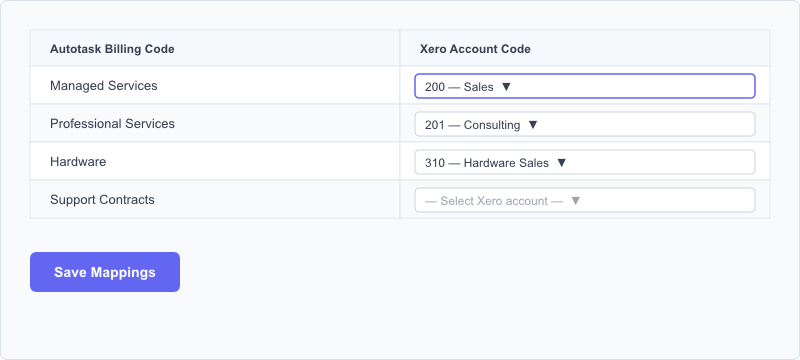
- You will see a table listing all your Autotask billing codes in the left column. The right column contains a dropdown for each row where you select the corresponding Xero account code.
Billing code mappings table with Autotask billing codes on the left and Xero account code dropdowns on the right - For each billing code, select the Xero account code it should map to. For example, if you have an Autotask billing code called Managed Services, you might map it to a Xero account code such as 200 – Sales or a more specific revenue account.
- When you have set all the mappings, click Save Mappings.
Default Account Code Fallback
If a billing code does not have a mapping set, upSync will use the Default Account Code configured in your Xero Settings. This means unmapped billing codes will not cause a sync failure – they will simply be posted to the default account.
Tip: After your initial setup, we recommend mapping all billing codes explicitly rather than relying on the default. This gives you accurate reporting in Xero by posting each type of revenue to the correct account.
Updating Mappings
If you add new billing codes to Autotask in the future:
- Go to Connections > Autotask and click Sync Reference Data to download the new codes.
- Return to Settings > Billing Code Mappings and map the new codes.
Xero Account Code Dropdown
The dropdown in the right column lists all active account codes from your Xero chart of accounts. If an account code is missing from the list, go to Connections > Xero and click Refresh Data to re-download your Xero accounts.